![DQS_White_RGB-1.png]](https://learn.dqsglobal.com/hs-fs/hubfs/DQS_White_RGB-1.png?height=40&name=DQS_White_RGB-1.png)
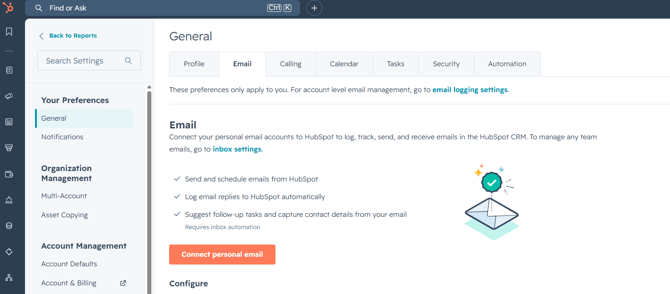
By connecting your inbox, you can:
- Send emails directly from HubSpot using your business email address.
- Automatically log emails to associated CRM records.
- Track email opens and clicks (where supported).
- Use email templates, snippets, and Sequences.
- Keep all customer communication centrally documented within HubSpot.
- Reduce manual documentation and improve collaboration across Sales teams.
Supported Email Providers
HubSpot supports connecting individual business inboxes hosted on:
- DQS - Microsoft Outlook / Microsoft 365
How It Works
After connecting your inbox:
- Emails sent from HubSpot are delivered through your connected business email account.
- Emails sent from your email client can automatically be logged to HubSpot.
- Communication is associated with the relevant Contact, Company, and Deal records, providing a complete customer history.
- Connected inboxes also enable features such as Sequences, email tracking, templates, and snippets.
Best Practices
- Connect your primary business email before working in HubSpot.
- Always associate emails with the correct Contact, Company, and Deal.
- Review automatic logging settings to ensure only relevant communication is stored.
- Use your connected inbox together with Calendar Connectivity and the Sales Workspace for the best user experience.
- Keep customer communication centralized in HubSpot to support collaboration and reporting.
Getting Started with the HubSpot Sales Outlook Add-in Purpose
The HubSpot Sales Office 365 Add-in brings HubSpot directly into Microsoft Outlook, allowing Sales Representatives to manage customer communication without leaving their inbox. The add-in enables users to log and track emails, access CRM records, use sales productivity tools, and keep customer communication synchronized with HubSpot. It is compatible with Outlook for Windows, Outlook for Mac, and Outlook on the web.
Before You Start
Before using the add-in, ensure that:
- Your business inbox is connected to HubSpot.
- You are signed in with your HubSpot account.
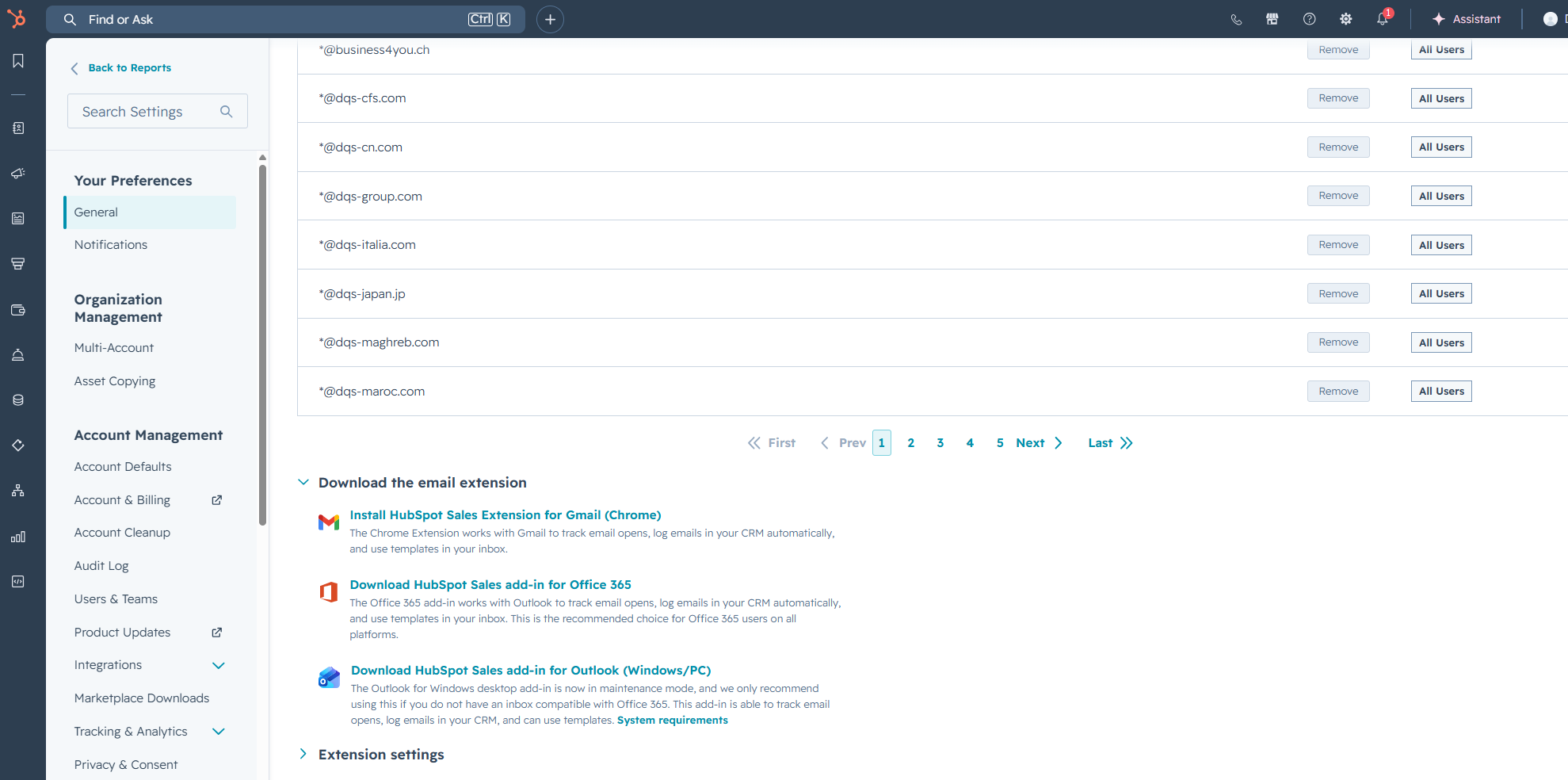
- The HubSpot Sales Office 365 Add-in is installed.
- Your Microsoft 365 account supports Office Add-ins.
Accessing the Add-in
Depending on your Outlook version, the add-in can be accessed from:
- Classic Outlook: Sales Tools in the Outlook ribbon.
- New Outlook (Windows/Mac): HubSpot Sales via the Apps menu or toolbar.
- Outlook on the web: Apps → HubSpot Sales.
Logging & Tracking Emails
When composing an email, you can choose to:
- Log the email to the CRM, creating a permanent record associated with the relevant Contact, Company, and Deal.
- Track the email to receive notifications when it is opened or when links are clicked (where supported).
For customer communication, DQS recommends enabling Log to maintain a complete customer history. Use Track when engagement insights are beneficial.
CRM Associations
Before sending an email, review the suggested CRM associations.
Verify that the email is linked to the correct:
- Company
- Deal
Accurate associations ensure complete documentation, improved collaboration, and reliable reporting throughout the sales process.
Best Practices
- Keep the HubSpot sidebar open while composing emails so your logging and tracking preferences are consistently applied.
- Log all relevant customer communication.
- Review CRM associations before sending.
- Use Templates, Snippets, and Meeting Links to improve consistency and efficiency.
- Combine the Outlook Add-in with the Sales Workspace, Sequences, and Calendar Connectivity for the best user experience.